The History sidebar gives Today's content more room while keeping past days and frequently used screens one gesture away. Turn it on to replace the date strip with a menu of recent days, earlier history, and shortcuts.
The sidebar changes how you navigate. Your food, drink, and activity entries remain in the same Timeline.
01Turn on the sidebar
Open You, tap the gear for App Preferences, and scroll to the Today section. Turn on History sidebar, then return to Today.
The date strip is replaced by a calendar button in the navigation bar. Tap that button or swipe inward from the left edge of Today to open history. If another sheet is open, close it first.
To return to the date strip, turn History sidebar off in the same settings section. This preference starts off, so your familiar calendar stays in place until you choose to change it.
02Choose a recent day
The first page shows today and the six days before it, with the newest day first. This is a rolling seven-day list, independent of your chosen week start day.
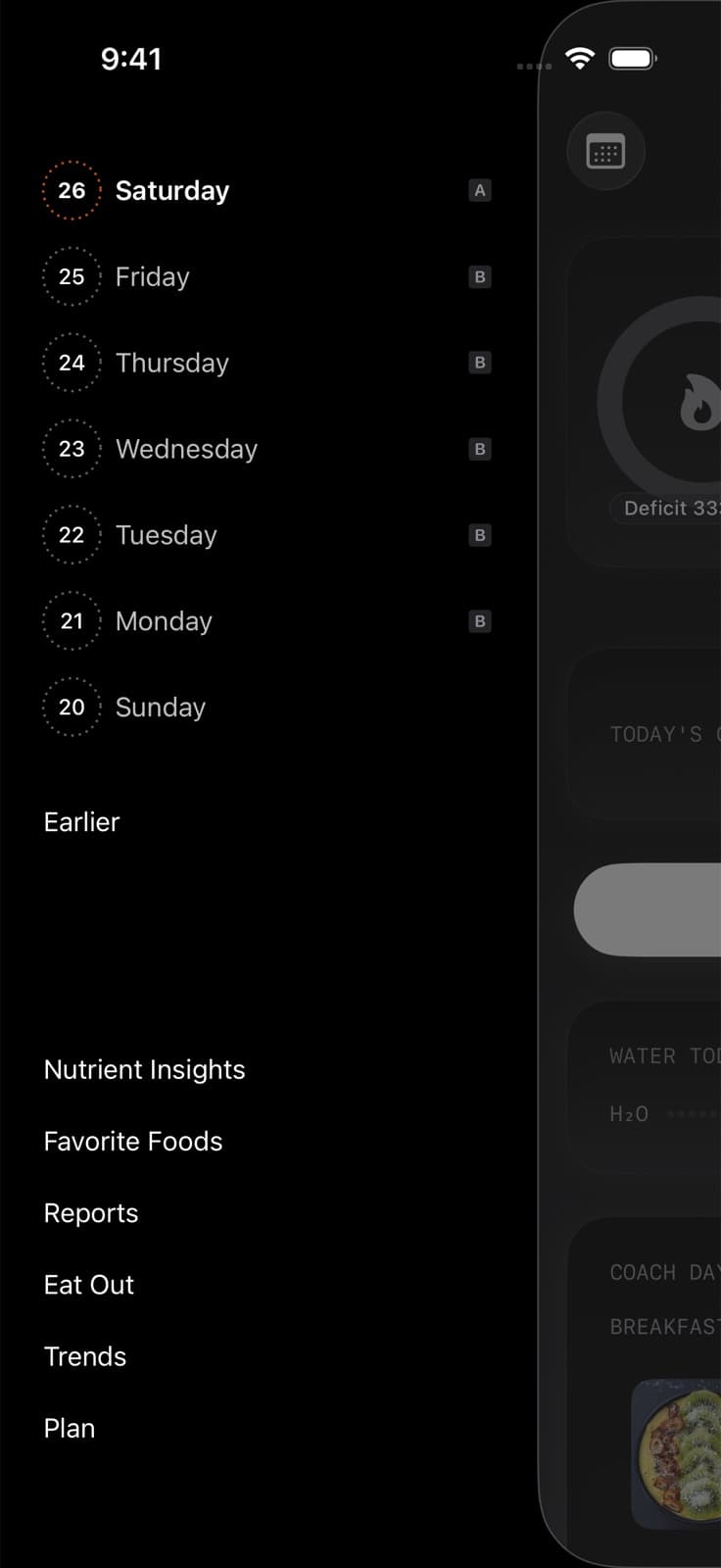
Rows can include calories eaten and a Health Grade when Fuel has those values. Rings help distinguish logged days, fasting days, and days without logs. An empty value means the sidebar has no value to display. It should not be read as proof that you consumed zero calories.
Tap a day to close the sidebar and open that date on Today. The Timeline and nutrition details then belong to the selected day. When you are viewing a past day, tap Back to today in the navigation bar to return to the current record.
03Find an older day
Tap Earlier below the recent days. Older dates are grouped by month, and more dates load as you scroll. The sidebar supports browsing up to one year back.
Use the back chevron on the Earlier page to return to recent days. To close history without changing the selected date, tap the dimmed Today area beside the sidebar.
The sidebar lists current and past dates. It has no future-day rows.
04Open another screen from history
The menu keeps several destinations close to Today, so you can check a nutrient pattern or your plan without first finding its tile on You.
| Shortcut | Where it takes you |
|---|---|
| Nutrient Insights | Your longer-term nutrient coverage and food suggestions |
| Favorite Foods | Foods you have saved for reuse |
| Reports | Progress evidence and PDF export |
| Eat Out | Menu scanning and restaurant recommendations |
| Trends | Multi-day nutrition and body trends |
| Plan | Your Plan |
When a streak appears above the day list, tapping it opens Badges. That is separate from the text shortcuts below the dates.
Use Nutrient Insights, Reports, or Badges and Achievements for what happens after you open those destinations.
05Past-day access on Free and Pro
You can enable the sidebar on Free. Opening a past day or its historical Health Grade requires Pro, even if a summary is visible in the day list. Today remains available.
The destination shortcuts keep their usual access rules. Opening a screen from history does not bypass its subscription requirement. Free and Pro explains the current limits.
If you are checking a suspicious total, select the date first, inspect its Timeline entries, and return with Back to today when you are finished. That keeps a historical review from turning into an accidental log on the wrong day.