Timeline is the dated feed on Today that shows the food, drinks, activities, and pending logs Fuel has for the selected day.
01What Timeline shows
Timeline is not a separate reporting screen. It is the record underneath the Today view.
Timeline lets you inspect the actual days that produced a trend. It is the fastest way to answer questions such as whether weekends differ, whether high activity days are under fueled, or whether logging gaps align with stalls. If you want a worked example built for lifters, Timeline Audits for Lifters: Finding the 2 Days That Break Your Cut shows how to compare the one hard day and one loose day that usually bend the week.
Food entries show calories and macros. Drink entries can show volume, caffeine, calories, and macros when those values exist. Activity entries show calories burned, workout type, and duration when available. Pending quick logs appear while Fuel is still processing a photo or text log.
Items are sorted by time, newest first. Food entries can also be grouped into meal blocks when they are close enough together to behave like one eating episode.
02Opening item details
Tap a Timeline item when you need to inspect or correct it.
Food details show the photo when one exists, the food name, description, time, calories, macros, micronutrients, meal rating, and item breakdown when a log contains more than one food. From there you can add the food to favorites, delete it, or edit the logged time.
Drink details work the same way for beverages. They show the drink name, time, volume, caffeine, calories, macros, and nutrient details when available. You can favorite, delete, or adjust the time for drink logs too.
Activity details show the workout or activity type, time, duration, and calories burned. Activities are part of the same day record because they affect Energy Balance, reviews, and dynamic targets.
Deleting a food or drink from Timeline also removes it from Apple Health when that entry was written there.
03Choosing another day
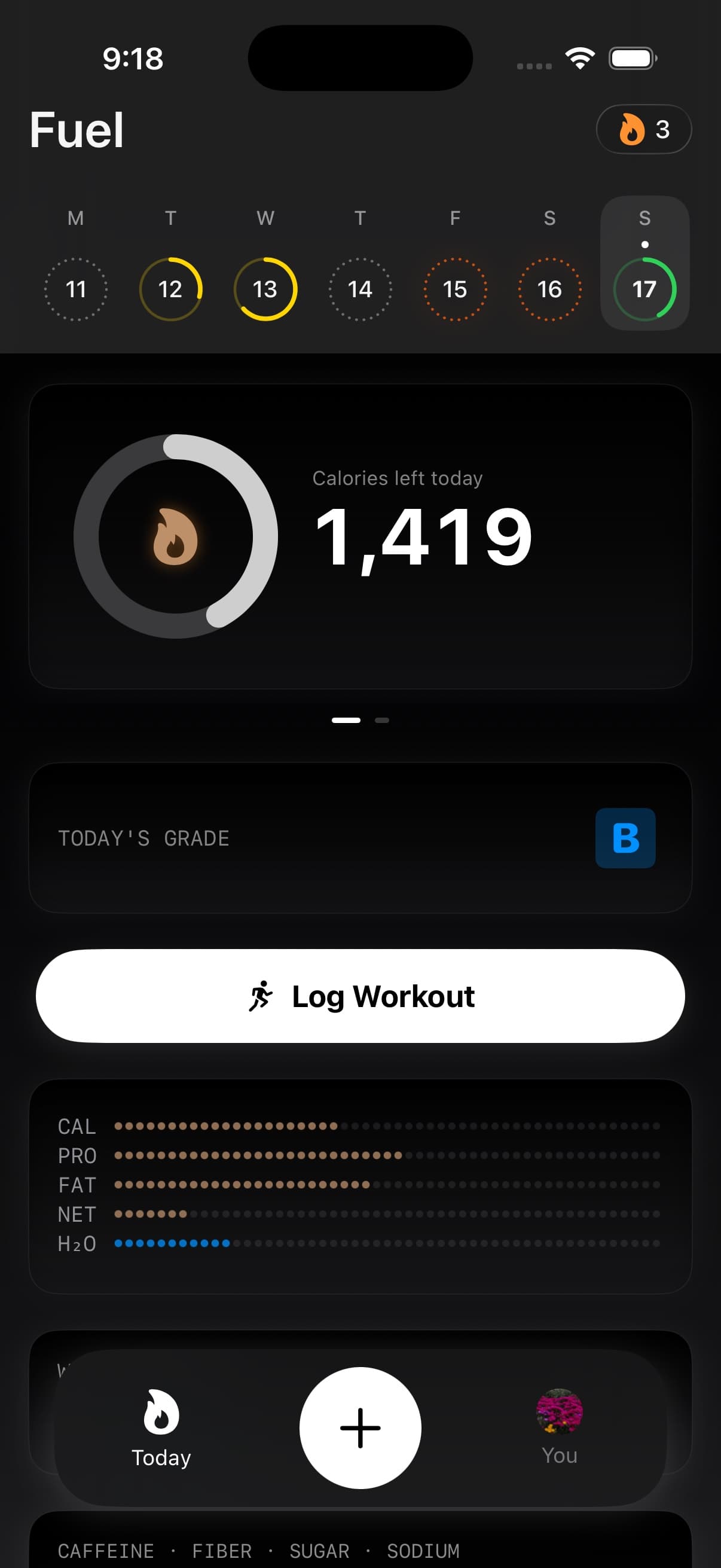
The calendar ribbon at the top of Today controls which day Timeline is showing.
Tap a day in the current week to load that day’s record. Swipe the ribbon to move to the previous or next week, then tap the day you want. Future days are not selectable.
The circles in the ribbon give quick status cues. Days with logs or progress can show colored progress. Days with no logs, fasting, or future dates are marked differently so you can scan the week without opening each day.
Pull to refresh when you expect new Apple Watch, Apple Health, or quick-log data to arrive.
04How Timeline connects to the rest of Fuel
Timeline is the evidence layer for the day.
Energy Balance uses the same food, drink, and activity records to compare intake against the calorie goal and burn baseline. Daily Review uses the selected day’s record to explain what happened. Weekly Review uses several Timeline days together to find patterns across the week.
Reports use those records at a higher level, so the quickest way to fix a suspicious report is often to correct the Timeline items that fed it.
If a review feels wrong, Timeline is the first place to check. Missing snacks, duplicated workouts, drinks logged without calories, or foods assigned to the wrong time can all change the interpretation.
05When something is missing
If a food or drink is missing, check whether the log finished processing or whether it was deleted from Apple Health. Pending items can appear while a quick log is still being analyzed.
If an activity is missing, check Apple Watch sync and Apple Health Permissions. Fuel can only show activity records it can read or records you logged manually.
If a historical day looks empty even though you remember logging, pull to refresh and make sure you selected the correct day in the calendar ribbon.
06Plan limits
Fuel Free includes a limited history view focused on today. Fuel Pro unlocks full Timeline history across previous days.
Use Free and Pro to confirm the current limits.