Prepare for Event builds your nutrition plan around a date you care about. Fuel uses your event date, current weight, and goal weight to set a phased calorie and macro plan, then shows how much preparation time remains.
Choose this goal when a wedding, vacation, competition, or another event gives your plan a clear date. The date shapes the calculation. It does not guarantee a particular weight or result by that day.
01Choose the event and date
During onboarding, select Prepare for Event on What's your fitness goal?. The event steps ask What are you preparing for? and When is the event?.
Choose Wedding, Vacation, Competition, Reunion, Photo Shoot, or Other. The current selector uses those options rather than a custom text field.
Use Event date to choose a date between 14 and 365 days ahead. The calendar initially suggests a date about three months away, so check it before continuing. The screen shows the number of days to go.
For this goal, the event timeline takes the place of the ordinary speed selection. Complete the remaining profile and plan choices so Fuel can calculate targets from your own starting point.
02Start or change an event plan later
If you have already finished onboarding, open You > Personal Details, find Goals, and open Goal Type. Choose Prepare for Event to open the event name and date steps.
Finish that flow to save the event plan. Closing it before completion leaves the draft unapplied. Use the same route when the event details need to change, then check Your Plan to confirm the saved date and targets.
03Read the preparation phases
Fuel spreads the planned adjustment across the time available. Longer plans can begin with Ramp, move into Push, and finish with Peak Week. Shorter plans may omit a phase, so every event plan will not show all three.
| Phase | How it fits the plan |
|---|---|
| Ramp | A smaller initial adjustment for timelines with room to build toward the main phase |
| Push | The main preparation phase, with a larger share of the planned adjustment |
| Peak Week | A smaller adjustment near the event when the timeline includes this phase |
The adjustment can be a deficit or surplus according to the weight direction in your plan. The phase name alone does not tell you how many calories to eat. Read the Daily Calories and macro targets calculated for you.
Peak Week is a Fuel planning label. It does not prescribe a competition taper, dehydration routine, or event-specific training schedule.
04Find your current event targets
Open You > Personal Details > Your Plan under Coaching Plan. If you use the History sidebar, its Plan shortcut opens the same view.
An active event plan shows the event name, event date, days remaining, Daily Calories, Phase, and Weeks Left. You can also review starting and target weight, the weight projection, and recommended macros.
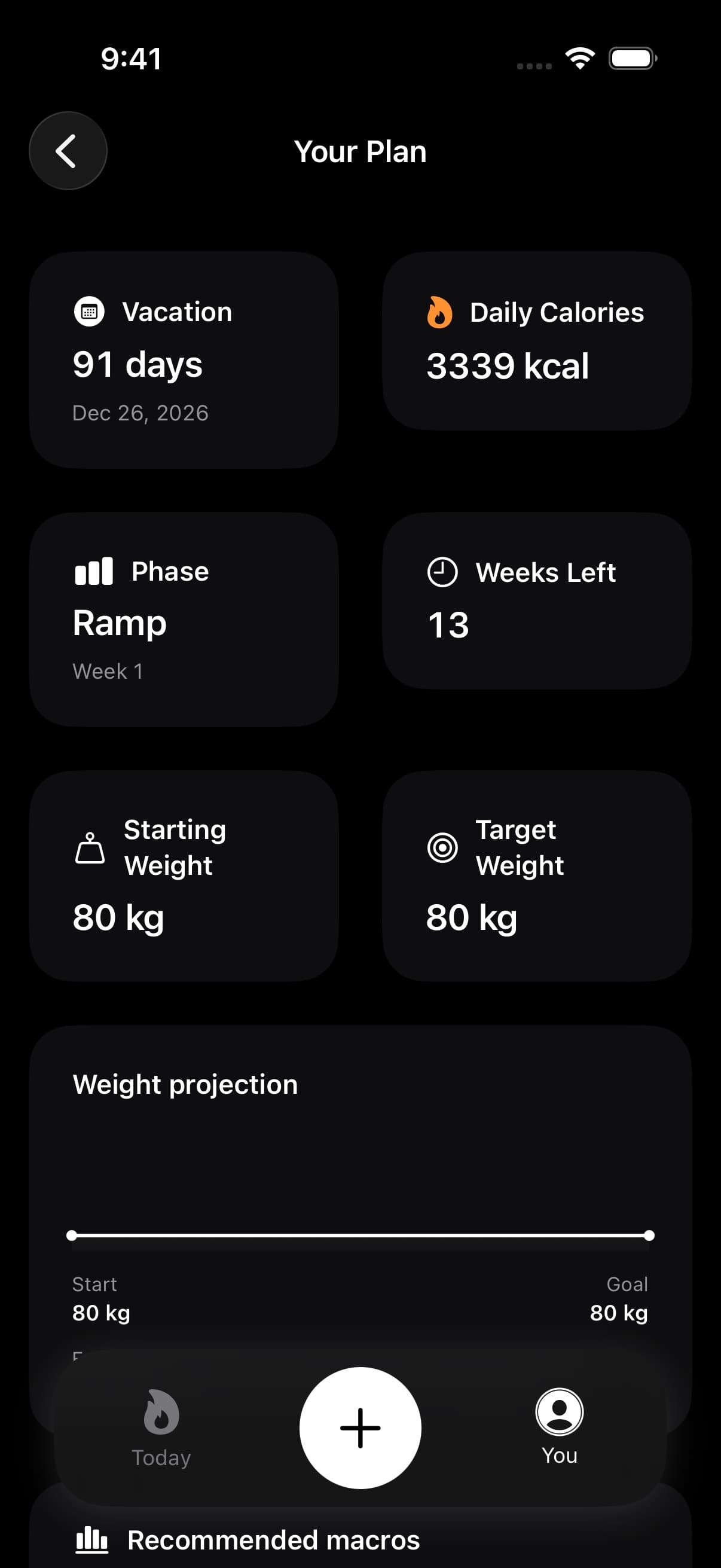
Your stored plan and today's calorie target may differ when Dynamic Calories or rollover is enabled. The event phase supplies the plan adjustment. Your selected daily calorie mode still governs how Today uses it.
05When the plan changes
Weekly Review is the regular checkpoint for event-plan updates. Fuel can save revised targets as the phase or required calorie adjustment changes. Simply reopening the app does not continually rewrite your event plan.
Keep food logs and weigh-ins current so the review has useful evidence. If the event date changes, update the event details rather than trying to compensate through unrelated macro edits.
Return to Your Plan after an update and read the saved phase and targets together. Those are the instructions for the current part of your preparation. The countdown provides the time context.