Maintain helps you keep your weight steady while making room for training days, rest days, and normal variation across the week. Your plan has no desired-weight destination, pace setting, or finish-date countdown.
01Set up Maintain
Choose You > Personal Details > Goal Type > Maintain. Then open You > Personal Details > Coaching Plan > Maintain to choose your training schedule, automatic fueling, and maintenance-range preferences.
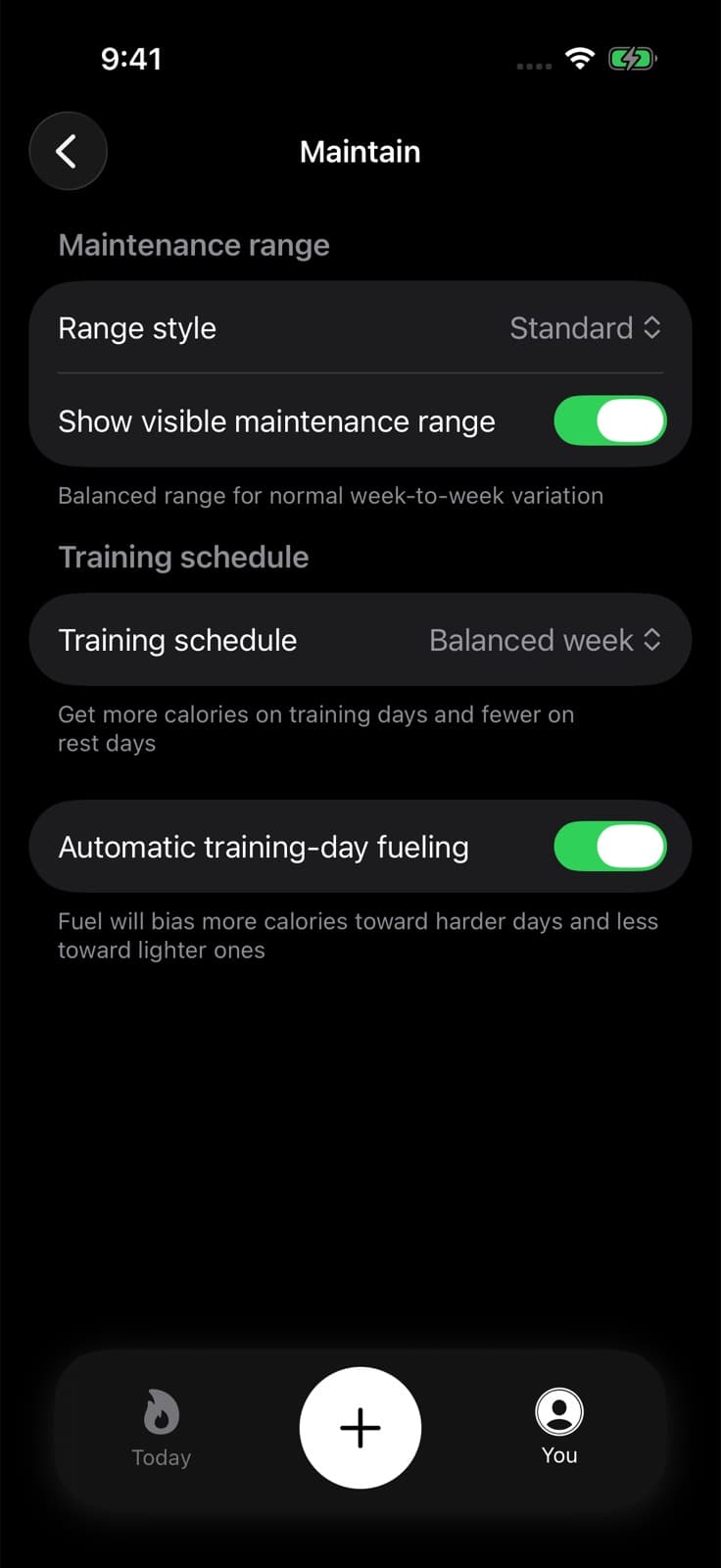
Check the switches when you set up your plan. New Maintain onboarding starts with the Balanced week schedule, Standard range, and range visibility off. Automatic training-day fueling starts on if you leave that question unanswered. Existing accounts keep their choices. An existing account without a saved automatic-fueling choice starts with it off.
Your calorie baseline and recommended macros are available under You > Personal Details > Coaching Plan > Your Plan. See Nutrition Planning for how Fuel calculates those targets.
02Choose your training schedule
The Training schedule setting tells Fuel which days you plan to train. Choose the preset closest to your usual week.
| Schedule | Planned training days |
|---|---|
| Balanced week | Monday, Wednesday, Friday |
| Training-focused week | Monday, Tuesday, Thursday, Saturday, plus a hard session on Wednesday |
| Lighter training week | Tuesday, Saturday |
| None | No planned training days |
If your settings show Custom, it describes an existing schedule. The settings screen does not currently offer a custom schedule editor.
The schedule controls planned fuel allocation when Automatic training-day fueling is on. It does not record a workout or confirm that you trained.
03Fuel training days across the week
Automatic training-day fueling gives planned training days higher calorie targets, funded by lower targets on rest days. The seven planned targets still average your plan calories. A higher training-day target therefore uses part of the same planned weekly allowance.
Turn the switch off to remove that scheduled redistribution. Choosing None also leaves no planned training sessions to fund.
Dynamic Calories is a separate setting. It can still raise a day's target with recorded activity, even when Automatic training-day fueling is off. Activity adjustments can increase the week's total allowance. Scheduled redistribution preserves the planned weekly average. Fuel does not add a separate full-workout calorie bonus.
If you want the same planned calorie target each day, turn off Automatic training-day fueling and use Plan Calories as your Daily Goal setting. For the details behind activity adjustments, see Fuel Energy Model.
04Read your Maintain balance
Open You > Maintain to see Maintain Balance. This is a Fuel Pro view, and the You-tab tile may need data before it appears. You can also open the balance overview through You > Personal Details > Coaching Plan > Your Plan.
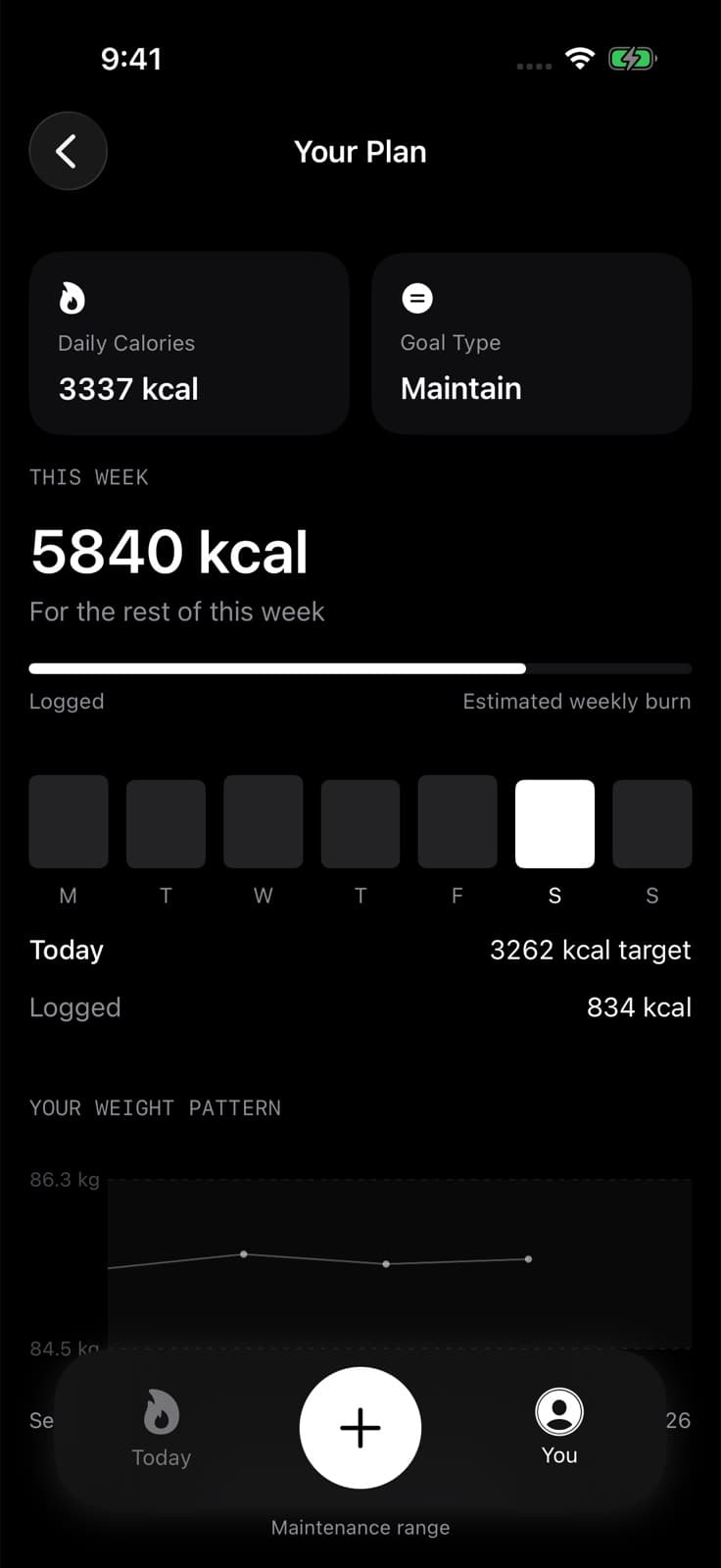
For the rest of this week is the calorie allowance remaining across the rest of the week. Use Today's calorie target when deciding how much room you have today.
The weekly bar also shows Logged calories and Estimated weekly burn. Tap the bar to inspect its totals. Tap a daily bar to see that date's target and logged calories.
Complete food logs matter here: a missing meal makes the remaining allowance look larger than it is. Recorded activity, unlocked calories, and the targets that applied earlier in the week also mean the live weekly budget may differ from seven times today's baseline. Check your logs before treating a large remaining allowance as extra room to eat.
Use Weekly Review to assess the week's pattern and the evidence behind the coaching.
05Choose whether to show your weight range
Range style sets how much room the maintenance range allows around your plan's reference weight. Choose Tight for a narrower band or Relaxed for a wider one.
| Range style | Maintenance range |
|---|---|
| Tight | ±0.5% |
| Standard | ±1% |
| Relaxed | ±1.5% |
With Show visible maintenance range on, Maintain can show your weight pattern and range. The chart covers seven days, while the rolling median uses the last 14 days and needs at least three readings. A sparse chart may therefore have too little evidence for a median.
Turn visibility off to hide the weight section on Maintain surfaces and keep numeric weights and ranges out of Maintain coaching. This setting does not remove your weigh-ins or hide weight everywhere in Fuel.
For recording weight and reading changes over time, see Weigh-ins and Trend. Choose the visibility setting that makes your weekly check-in useful, then keep your logs complete enough to trust it.