Completed Goals keeps a record of a finished weight goal or plan cycle after you move on. Open a recap to revisit the logged days, activity, and weight journey behind it, share the result, or choose your next chapter.
Find the collection in You > Achievements. When completed records exist, Completed Goals appears above the badge categories, with the newest result first.
01Confirm a weight goal with a later weigh-in
For a loss goal, a weigh-in at or below the target starts confirmation. For a gain goal, a weigh-in at or above the target does the same. Today can show Goal nearly confirmed and ask for one more qualifying weigh-in.
A later qualifying entry confirms the crossing. Reusing the same entry or adding an older measurement does not provide that confirmation. If a later entry returns to the other side of the target, the pending confirmation clears.
Once the goal is confirmed, Fuel records the completed journey and starts a maintenance plan. The celebration and recap then lead into the next-chapter choice. The automatic weight-goal path applies to loss and gain goals. Maintain does not complete merely because a weigh-in matches its target.
If the goal is nearly confirmed, keep recording your usual weigh-ins. Let a later measurement confirm the result rather than entering the same value again just to advance the screen.
02Save a completed plan cycle
Open You > Plan progress > View Plan to find Complete Plan when your current cycle is eligible. The cycle must have started and must not already be completed. It needs either a completed weight goal or at least 14 Fuel Days. Review the recap and confirm Complete Plan to save it in Achievements.
Completing a cycle this way saves the recap without changing your current plan. The automatic maintenance transition belongs to confirmed weight-goal completion.
Plan Progress requires Pro. Viewing Achievements and the automatic goal-completion experience are separate from that access boundary. Use Free and Pro for the current feature limits.
03Read the saved recap
Weight-goal cards use Goal achieved and View journey. Plan-cycle cards use Plan completed and View recap. Tap a card to open its details.
The recap can include Fuel Days, On Target days, workouts, weekly reviews, and timeline dates. A weight chart appears when at least two recorded weight points are available. Sparse weight history can leave the chart absent even when the rest of the recap is valid.
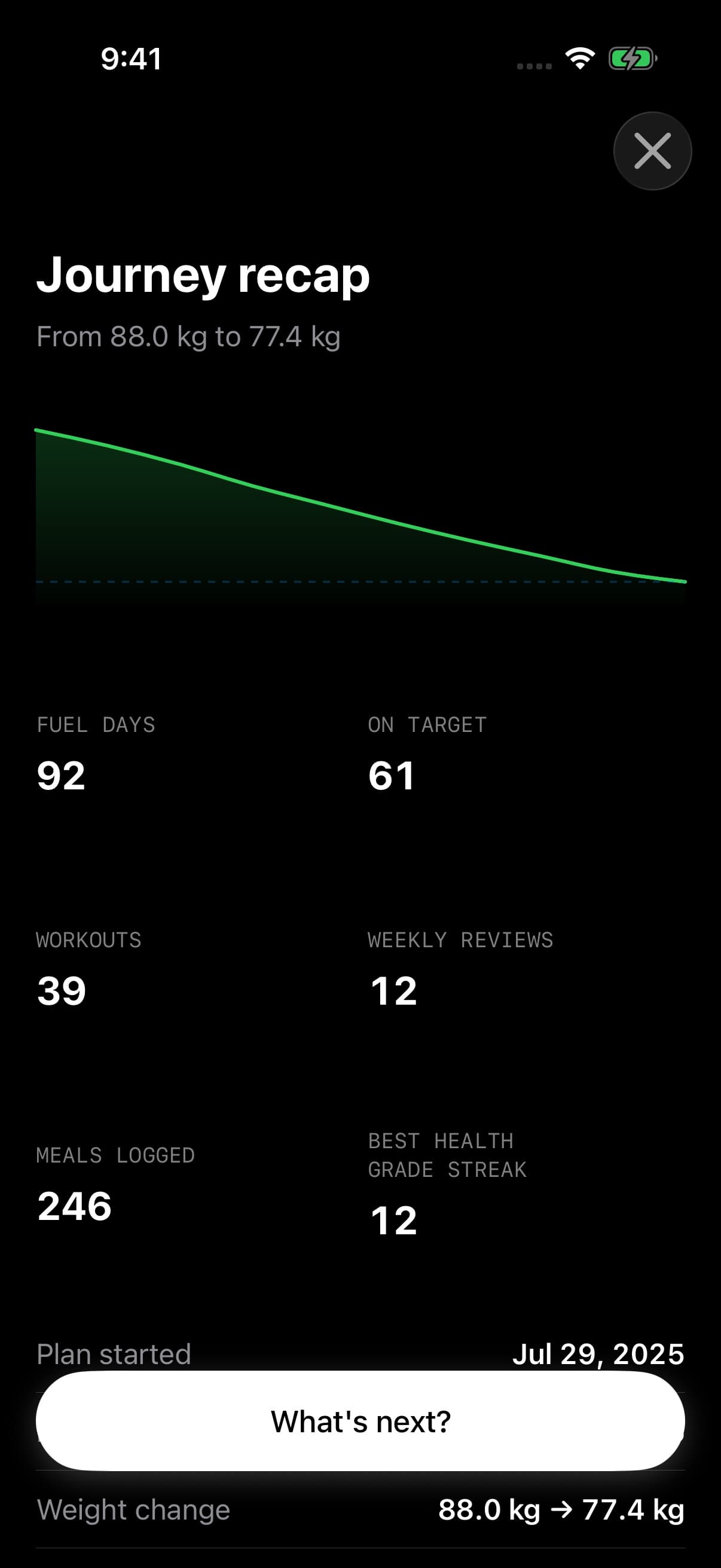
The completion recap brings the weight journey and recorded activity together before you choose what comes next.
These values belong to the saved completion. The achieved weight comes from the recorded result, so a goal target is not substituted for a missing final measurement.
04Share a completed goal
Open the completed record and use its Share action. Fuel prepares a card from the saved recap, including the recorded weight journey when available, then opens the system share sheet.
Review the card before choosing a destination. Sharing is optional, and opening a completed goal does not publish it.
05Choose what comes next
The What's next? screen offers Lose Fat, Maintain, and Build Muscle, with a suggested option based on the available record. You choose whether to follow it.
Maintain keeps the maintenance plan. Lose Fat or Build Muscle takes you through setup for a new target and pace. Finish the flow to start the next chapter with its own timeline.
You can stay on maintenance for now. If you close the completion flow before making a choice, return to What's next? on You to continue. Your completed recap remains in Achievements while you decide.