Put calories, water, weight, or another Fuel metric on your Apple Watch face to check it at a glance. Add a Smart Stack card when you want more detail without changing your face.
01Add Fuel to your watch face
Choose a metric you check often, then give it a compatible slot on your watch face. Fuel supports circular, rectangular, inline, and corner complications. The available slots depend on the face you use.
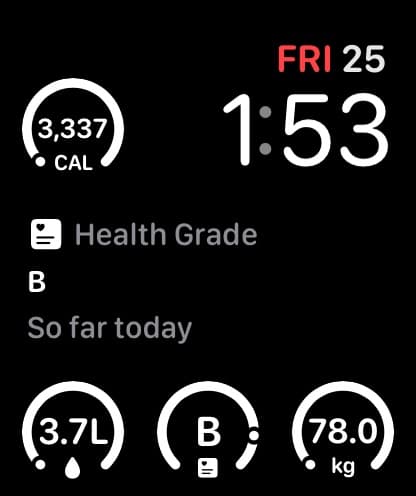
- Press and hold your watch face, then tap Edit.
- Swipe to the complications screen and tap the slot you want to change.
- Find Fuel and choose the metric you want, such as Calories or Protein.
- Press the Digital Crown to finish editing, then tap the face to return to it.
The picker can show individual metric choices directly. If you see a configurable Fuel Metric option, choose the metric within it. Repeat these steps for each slot you want to use. Tapping a Fuel complication opens the corresponding view in the watch app.
If Fuel is missing from the picker, check that the Watch Companion is installed and try a compatible slot on another face.
02Choose what to show
Fuel offers nine metrics. Macros combines calories and protein in one compact view. Choose Protein on its own if the grams remaining are what you want to see most clearly.
| Metric | What it shows |
|---|---|
| Calories | Calories left or over your target, or calories eaten when that display preference is selected |
| Protein | Grams remaining, with Done or a checkmark when the target is reached |
| Macros | Calories left or over, alongside protein remaining or completion |
| Water | Water remaining toward your daily target |
| Fasting | Your fasting state and timing |
| Sauna | Elapsed time during an active session, or Start when no session is active |
| Weight | Your latest available weight in your preferred unit |
| Health Grade | Your available grade, with more context in a rectangular slot |
| Streak | Your current streak count |
Larger slots have room for context such as So far today or Final under Health Grade. A circular Weight complication displays the latest weight. Its surrounding ring does not measure progress toward a goal weight.
For the meaning behind each number, see Hydration, Fasting, Weigh-ins and Weight Trend, and Streaks.
03Add a Fuel card to the Smart Stack
The Smart Stack gives your chosen metric a larger card below the watch face. You can use it alongside face complications or keep your face clear and check Fuel here.
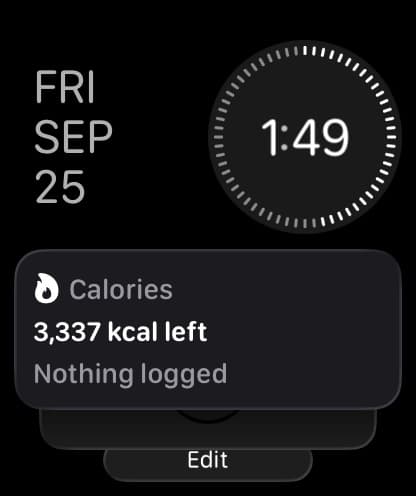
- From the watch face, turn the Digital Crown upward or swipe up to open the Smart Stack.
- Scroll to the bottom and tap Edit.
- Tap +, find Fuel, and choose the metric card you want to add.
- Finish editing. Pin the card if you want it to stay near the top.
Water, Fasting, and Weight are choices within Fuel's metric widget. Next Action and Coach are separate Smart Stack widgets for guidance. Apple's Smart Stack guide explains how to arrange and pin widgets.
Fuel also offers Hydration, Quick Log, Workout, and Weight controls. These open the corresponding logging flow. Tapping a control does not immediately save an entry.
04Replace a blank complication after updating
If an older Fuel complication becomes blank after an update, edit that slot and select its current replacement. The retired fixed complications map to these metric choices:
| Previous complication | Choose now |
|---|---|
| Calories Left | Calories |
| Water | Water |
| Streak | Streak |
| Macro Focus | Macros |
Replace each affected slot manually. A blank retired complication does not mean your nutrition history has been lost.
05When a number looks old or is missing
Complications use the latest data available to the watch. They do not guarantee an immediate refresh after every change on iPhone. A Health Grade card showing Sync means its data is stale.
Open Fuel on iPhone and Apple Watch, then open Sync Status on the watch and tap Sync now. Check the record in the app if you need the latest value before the complication refreshes.
Log or No weigh-in yet means a weight is unavailable to the complication. No grade yet means a Health Grade is unavailable. These messages do not represent measured zero values. If the watch still looks out of date after syncing, follow Troubleshooting.