iCloud Backup saves your profile, plan, streaks, coach settings, and preferences to iCloud, so moving to a new device is faster and you do not have to rebuild everything by hand.
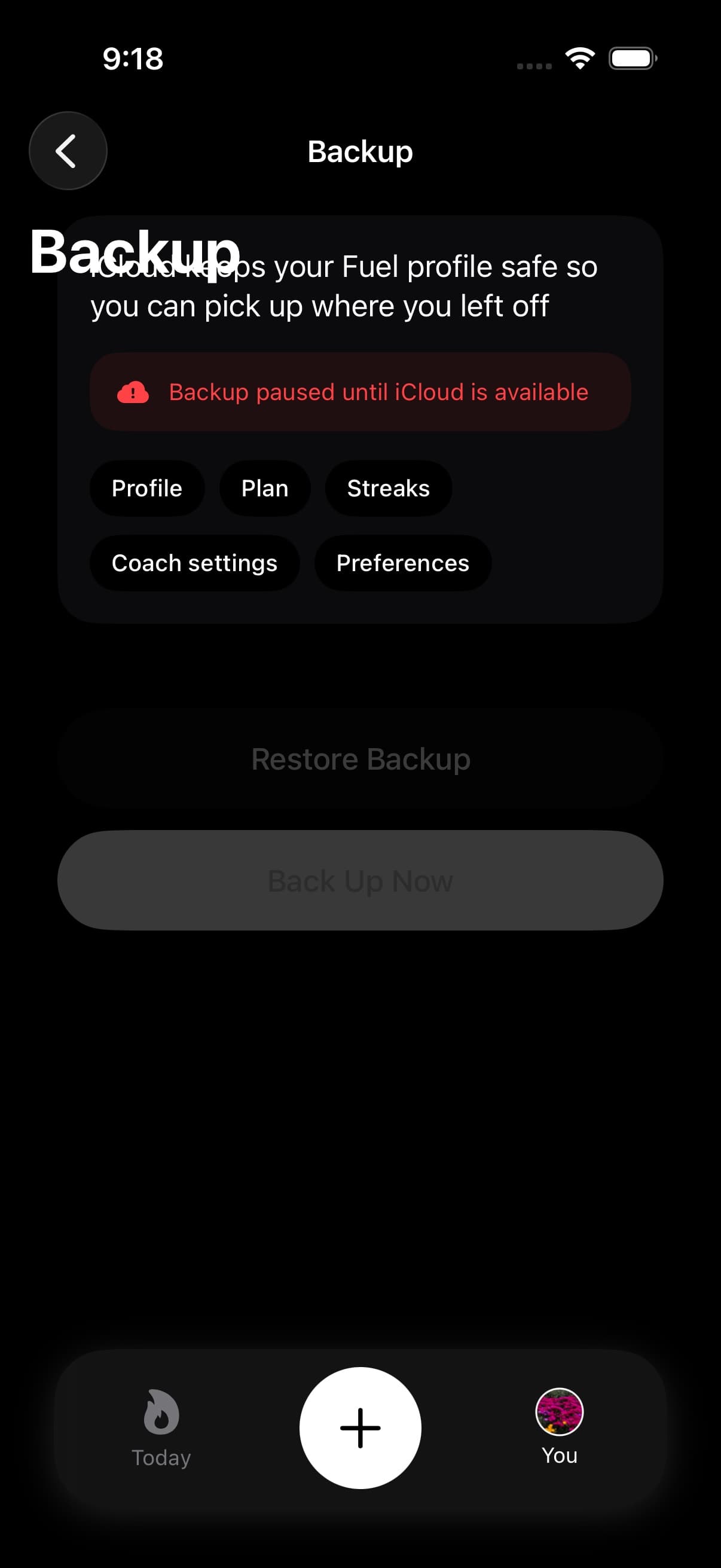
01What iCloud Backup saves
Fuel backs up the parts of your setup that shape how the app works for you. That includes your profile, plan, streaks, coach settings, and preferences.
Backup can also include setup state tied to newer app surfaces: GLP-1 support settings, dose check-ins, symptom entries, intermittent-fasting preferences, fasting notification settings, sauna default temperature, report-period plan history, notification settings, feature-limit state, subscription state, achievements, and day annotations.
Current backups also include Fuel's saved body measurements, sauna-session details, and completed-goal records. Those app records are separate from raw Apple Health samples and progress-photo files.
If you get a new device or need to restore your setup later, Fuel can bring those essentials back together in one restore flow.
02What iCloud Backup does not save
Fuel does not include raw Apple Health samples, food history, hydration logs, ordinary workout history, or exported Reports PDFs in this backup. Saved Fuel sauna-session details can be restored, but the original Apple Health workout samples remain outside this backup.
Progress photos stay on the device and are excluded from iCloud backup. Restoring a Fuel profile on another phone will not bring those images across.
That means iCloud Backup is best thought of as a way to restore your setup, not your full nutrition history.
Imported-food hiding is also not a way to delete Apple Health data. If Apple Health brings the same third-party food back on a restored device, hide it in Fuel again if it should not count there.
03Open iCloud Backup in settings
You can manage backups from the Backup screen in Settings.
- Tap You tab
- Scroll down to Settings
- Open Backup
Fuel checks iCloud Backup when the screen opens and shows whether you already have a backup saved.
04Backing up now
Fuel can create a backup for you automatically, and you can also make one manually when you want peace of mind before changing phones or resetting your setup.
- Open Backup
- Tap Back Up Now
If the backup works, Fuel shows the latest backup time on the screen.
05Restore during onboarding
When Fuel finds a backup during onboarding, it can show Welcome back with the saved profile's details and backup date. Tap Restore my profile to use that setup, or Start fresh to continue the onboarding questions.
If the backup is found after you have started the questions, We found your iCloud backup opens the same offer. A restore error stays on the offer so you can review it and try again.
This is the fresh-device restore path. It restores the saved setup and brings you out of onboarding when complete. Past food records still need to be available through Apple Health.
06Restore from Settings
Restore is designed to bring your Fuel setup onto this device.
- Open Backup
- Tap Restore Backup
- Confirm the restore when Fuel asks
Fuel warns that restoring the latest iCloud backup on this device replaces your current profile data. Use restore when you want this device to match your saved Fuel setup.
After restore, reopen Today so hydration, fasting, GLP-1, and report-period context can refresh from the current Apple Health record and restored setup.
Restoring does not grant Apple Health or notification permission on the new device. Check You > Apple Health and use Open Settings if Fuel needs access to your existing records. Apple Health Permissions explains the categories to check.
07What restore replaces
The Settings restore can replace profile values and preferences you have changed since the backup. Fuel's saved body-measurement and sauna-session records are reconciled with existing records, while system permissions remain local to the device. Keep the confirmation warning in mind before restoring on a phone you already use.
If you only want to change one setting, it is usually better to update that setting directly instead of restoring.
08When backup is unavailable
Fuel can show that iCloud is not available for backups right now. If that happens, check your iCloud access and network connection, then try again.
You may also see that there is no iCloud backup yet. In that case, create one first with Back Up Now.