Home screen widgets put your daily numbers on your iPhone lock screen or home screen so you can check progress without opening the app.
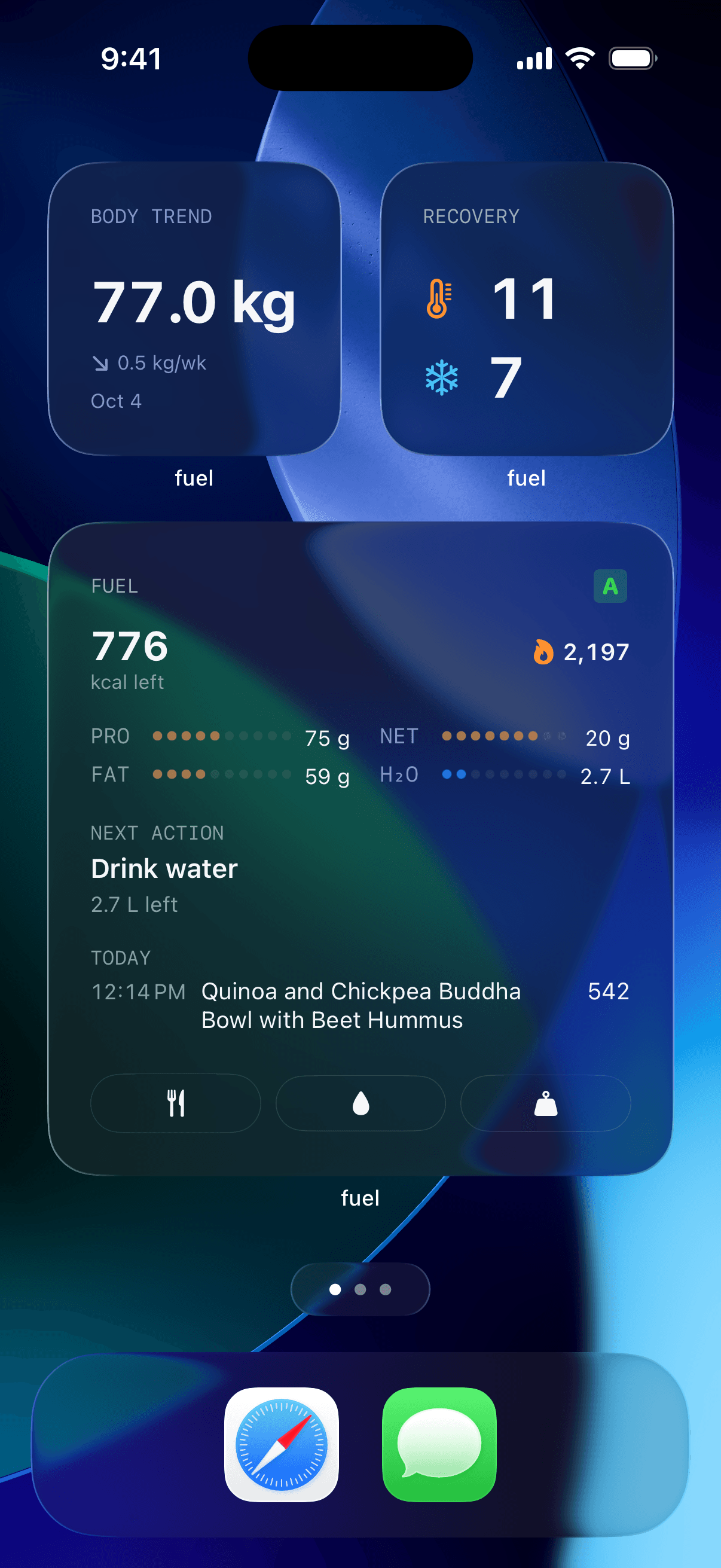
01Adding a widget
- Long press an empty area on your home screen or lock screen
- Tap the plus icon in the top corner
- Search for Fuel
- Choose a widget size and tap Add Widget
Lock screen widgets use the compact accessory format. Home screen widgets come in small, medium, and large sizes depending on the widget type.
02Available widgets
| Widget | Sizes | What it shows |
|---|---|---|
| Calories | Small, Medium, Lock Screen | Calories remaining or consumed against your daily target with a progress ring |
| Macros | Medium, Large | Protein, carbs, and fat remaining with progress rings. Large adds percentage breakdown |
| Targets Grid | Small, Medium | Dot grid showing progress across calories, protein, fat, carbs, and water |
| Water | Small, Lock Screen | Water progress toward your daily target |
| Streak | Small, Lock Screen | Current day streak, weekly streak, and total streak count |
| Health Grade | Large | Your daily letter grade with the top five contributors and their status |
| Plan Progress | Large | Current week status, weight trajectory chart, and calorie, workout, and weight chips |
| Micronutrients | Large | Top micronutrients sorted by priority with progress toward daily targets |
03Match widgets to calorie grade or water focus
Pick widgets that surface the constraint you tend to miss. If you under-eat on active days, use Calories or Macros. If diet quality drifts, use Health Grade and Water. If weekly compliance matters most, use Plan Progress.
Start with Calories and one other widget, then add more once you know which numbers change your decisions.
04How widgets update
Widgets refresh from a shared snapshot that updates every two hours or when data changes. If a widget looks stale, open the app briefly to trigger a fresh snapshot.
05Control Center controls
On iOS 18 and later, Fuel adds Control Center controls for food, water, weight, and workout logging. Add them from Control Center settings when you want one-tap capture without opening the app.
Use widgets for status and Control Center controls for action. A widget answers "how am I doing?" A control answers "what do I need to log right now?"
06Widget limits by plan
Fuel Free includes a smaller widget set. Fuel Pro unlocks all widget types and a higher widget count. See Free and Pro for current limits.
07Widgets vs Today view cards
Home screen widgets live on your iPhone home screen and lock screen. Today view cards are the interactive cards inside the app on the Today tab. Both show similar data, but widgets are glanceable and Today view cards are tappable for detail.