Fuel's dedicated sauna timer on Apple Watch records active session time, your selected temperature, and estimated calories. Pause when you want to exclude time from the session, then finish with the red square to save the entry for review on iPhone.
01Start a sauna session on Apple Watch
Open Fuel on Apple Watch and tap Sauna on Home. Choose the target temperature in the picker, then tap the orange play button to start.
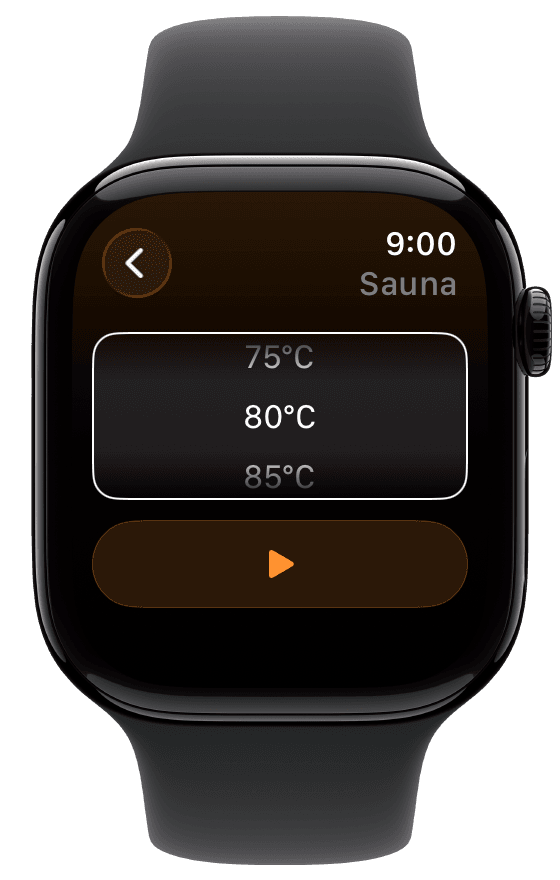
The selected temperature is a value you enter. Fuel does not measure the sauna's actual temperature. Once the session starts, the screen shows the timer, estimated calories, and heart rate when available.
02Pause and resume the timer
Tap the pause button to pause the session. Paused time does not add to the active timer or calorie estimate. Tap play to resume the same session.
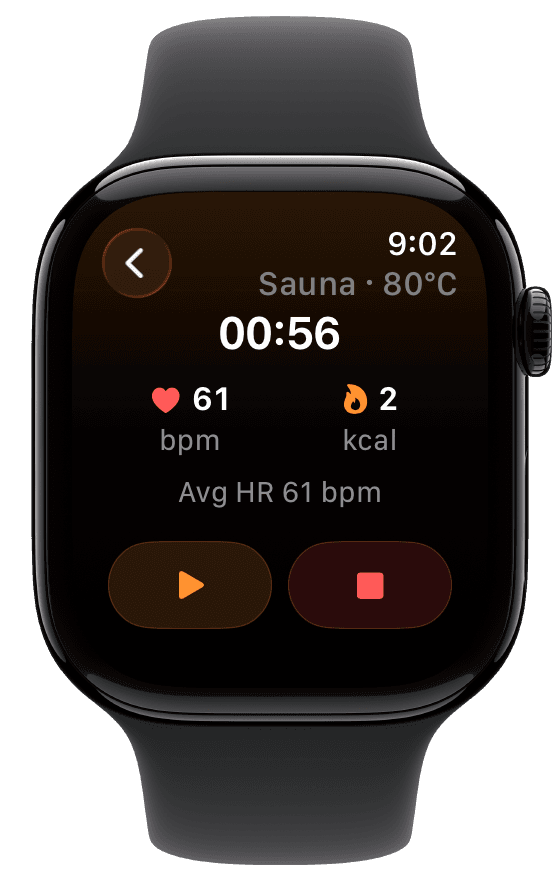
Pause keeps the session open. To finish and save it, tap the red square instead.
03Return Home without ending the session
Use Back to return to Watch Home while keeping the session open. Tap the Sauna tile to reopen its controls.
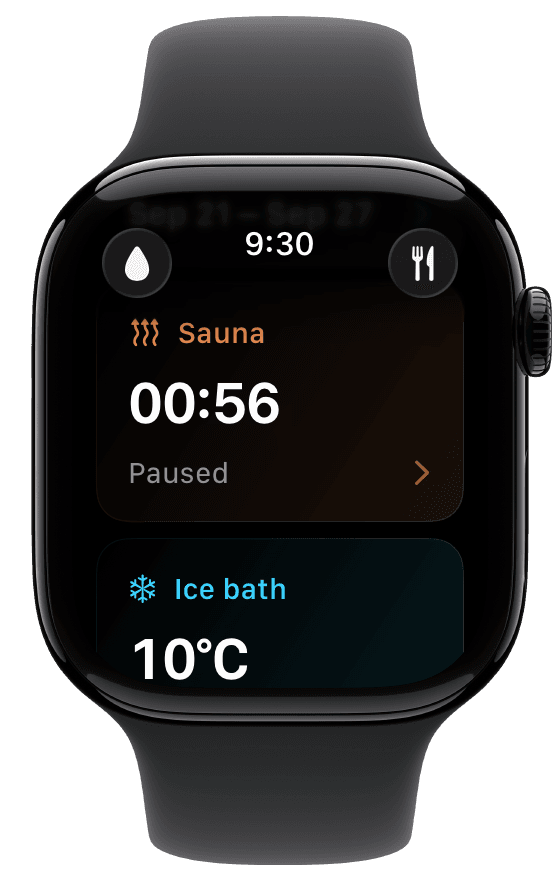
Returning Home does not stop or pause the timer. If you want to exclude time before leaving the session screen, pause first. Reopening the Sauna tile returns you to the existing session.
04Finish and check the save status
Tap the red square to finish. The summary shows active duration, estimated calories, and average heart rate when available.
During saving, the status can read Saving to Health. Saved to Health confirms an actual Apple Health save. Saved confirms the entry was saved without claiming a Health export. Writing to Apple Health depends on export being enabled and the required Apple Health permissions.
Tap Done to close the summary. After a confirmed save, Fuel can also return to Home automatically. If saving fails, use Retry to resend the pending session delivery, then check the status again.
05Review the session on iPhone
Open Fuel on iPhone and tap the Sauna entry in Today. The detail view shows a recap, estimated energy, duration, selected Target temperature, and Heat load. When heart-rate data is available, it can also show a chart, average heart rate, and peak heart rate.
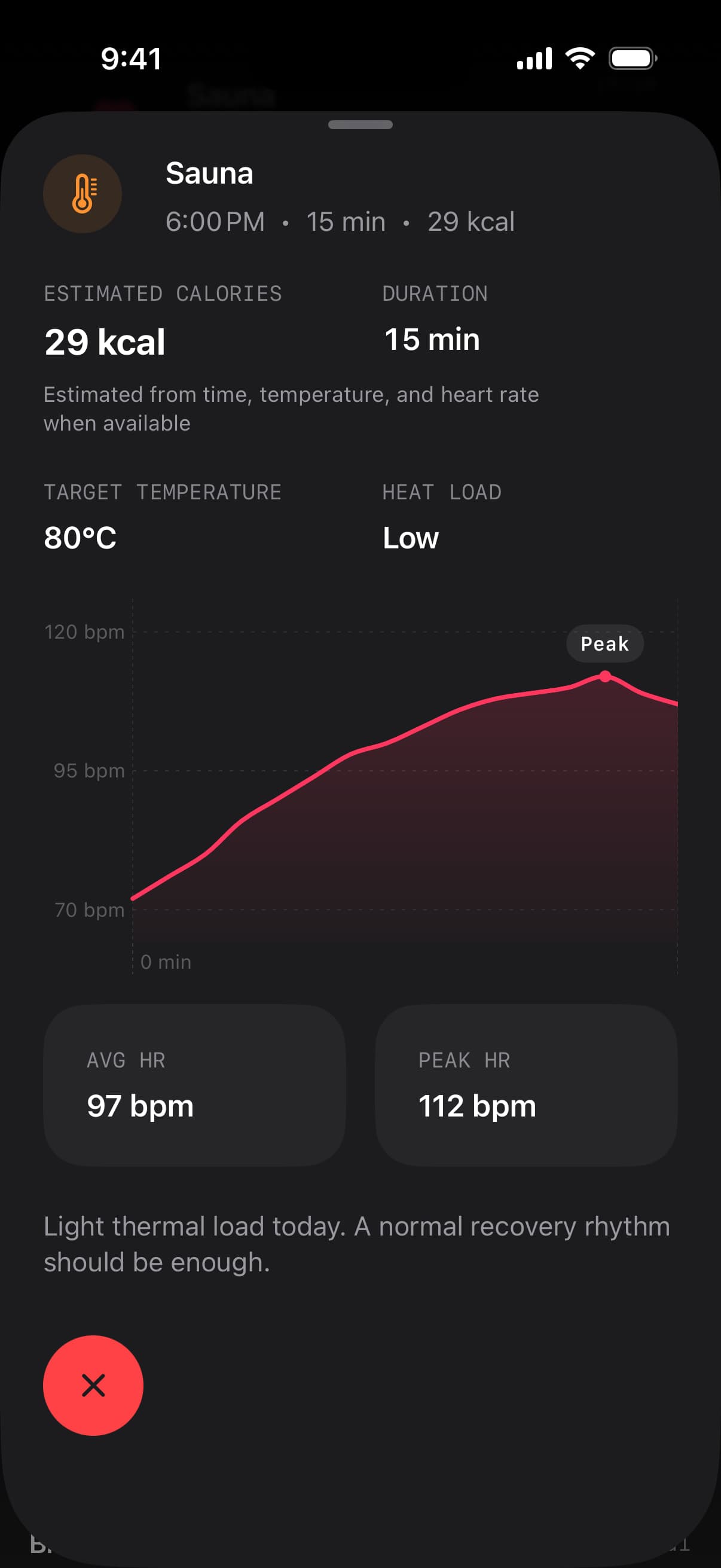
The phone capture above is a separate example session from the Watch captures. Use your own Today entry to check the recorded duration and selected temperature.
06Understand the estimates
Sauna calories are modeled from active time, selected temperature, and heart rate when available. The estimate is not a precise measurement of energy expenditure or evidence of a metabolic benefit.
Heat load is derived solely from the selected temperature. It does not measure your physiological exposure or strain, and it does not account for duration or heart rate. Read it as temperature context for the saved entry.
Fuel also supports mapping Apple Health Other workouts to Sauna in App Preferences. That mapping labels imported workout context and is separate from the dedicated Watch sauna timer. Use Workout logging for workout handling, Watch Companion for Watch setup, or Troubleshooting if the saved entry does not appear on iPhone.