Start an ice bath session on Apple Watch, pause when you need to, and save the elapsed time for review on iPhone. Fuel records the temperature you enter and a conservative calorie estimate alongside any available heart-rate readings.
01Start a session on Apple Watch
Open Fuel on Apple Watch, scroll to Ice bath on Home, and tap the tile. Choose the water temperature in the picker, then tap the blue play button to start.
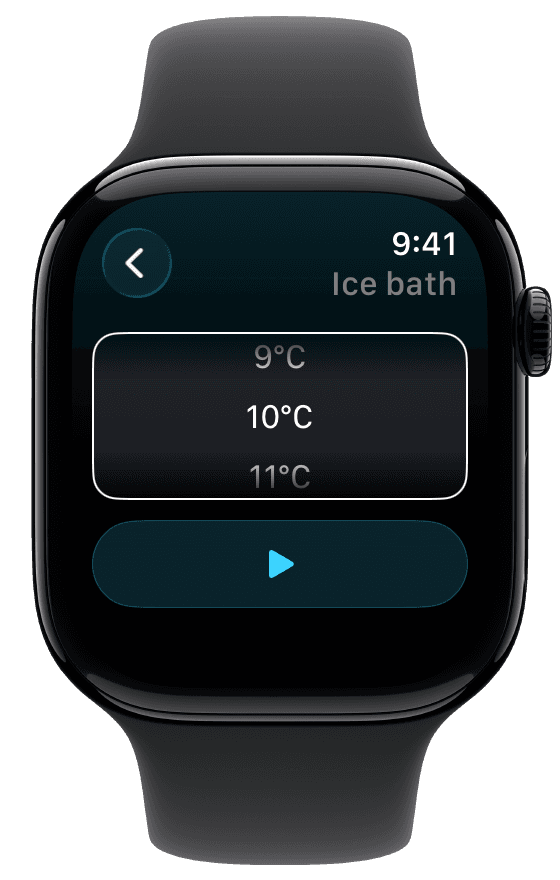
The picker follows your preferred temperature units. The value is entered by you. Fuel does not measure the water temperature or use the picker to recommend a temperature or session length.
During the session, the screen shows the timer and estimated calories. Current and average heart rate appear when readings are available.
02Pause resume or return to Home
Tap the blue pause button to pause. Paused time does not add to the active duration or calorie estimate. Tap the blue play button to resume the same session.
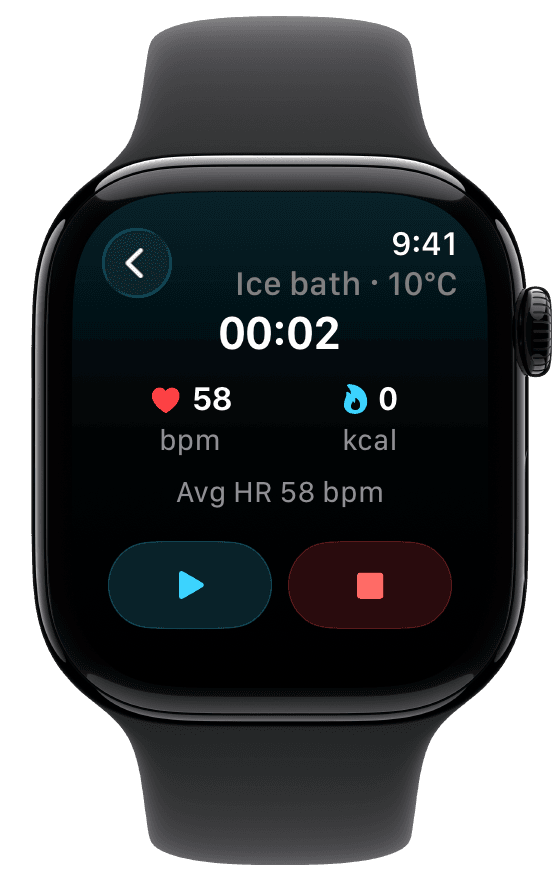
The back arrow returns to Watch Home without ending the session. The Ice bath tile shows In session or Paused so you can reopen the controls. Use the red square when you are ready to finish.
03Finish and check the save status
Tap the red square to finish the session and open its summary. Fuel shows Saving to Health while the save is pending. A confirmed result shows Saved to Health when the session was exported to Apple Health, or Saved when it was saved without that export.
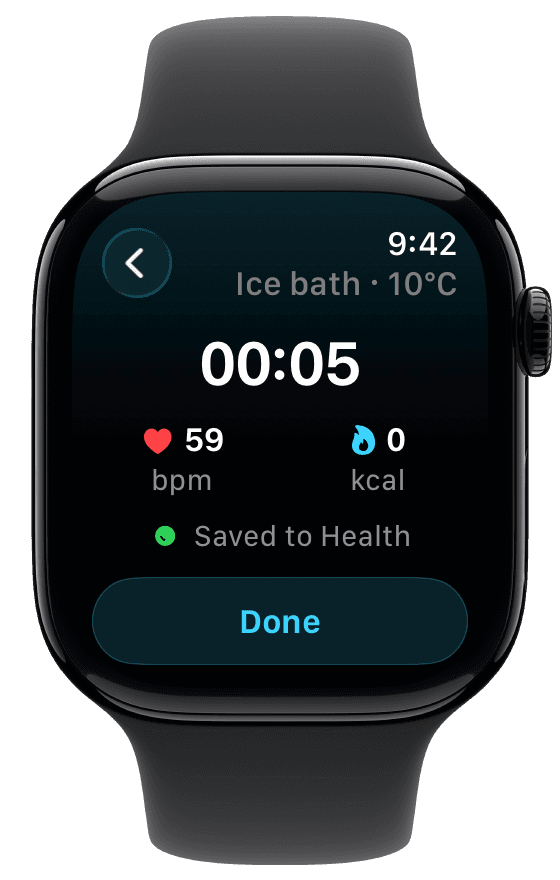
Apple Health export depends on export being enabled and the required permissions being available. Saved confirms the session save without confirming a Health export. See Apple Health permissions if you need to check access.
Tap Done to close the summary. A confirmed save can also return you to Watch Home automatically. If the save fails, tap Retry to resend the pending session. Retry does not guarantee an immediate Apple Health save, so check the resulting status.
04Review the session on iPhone
Open Fuel on iPhone and tap the ice bath entry on Today. The detail screen shows the start time, Calories, Duration, and Target temperature. Average heart rate, peak heart rate, and a heart-rate chart appear when the session has the readings needed for them.
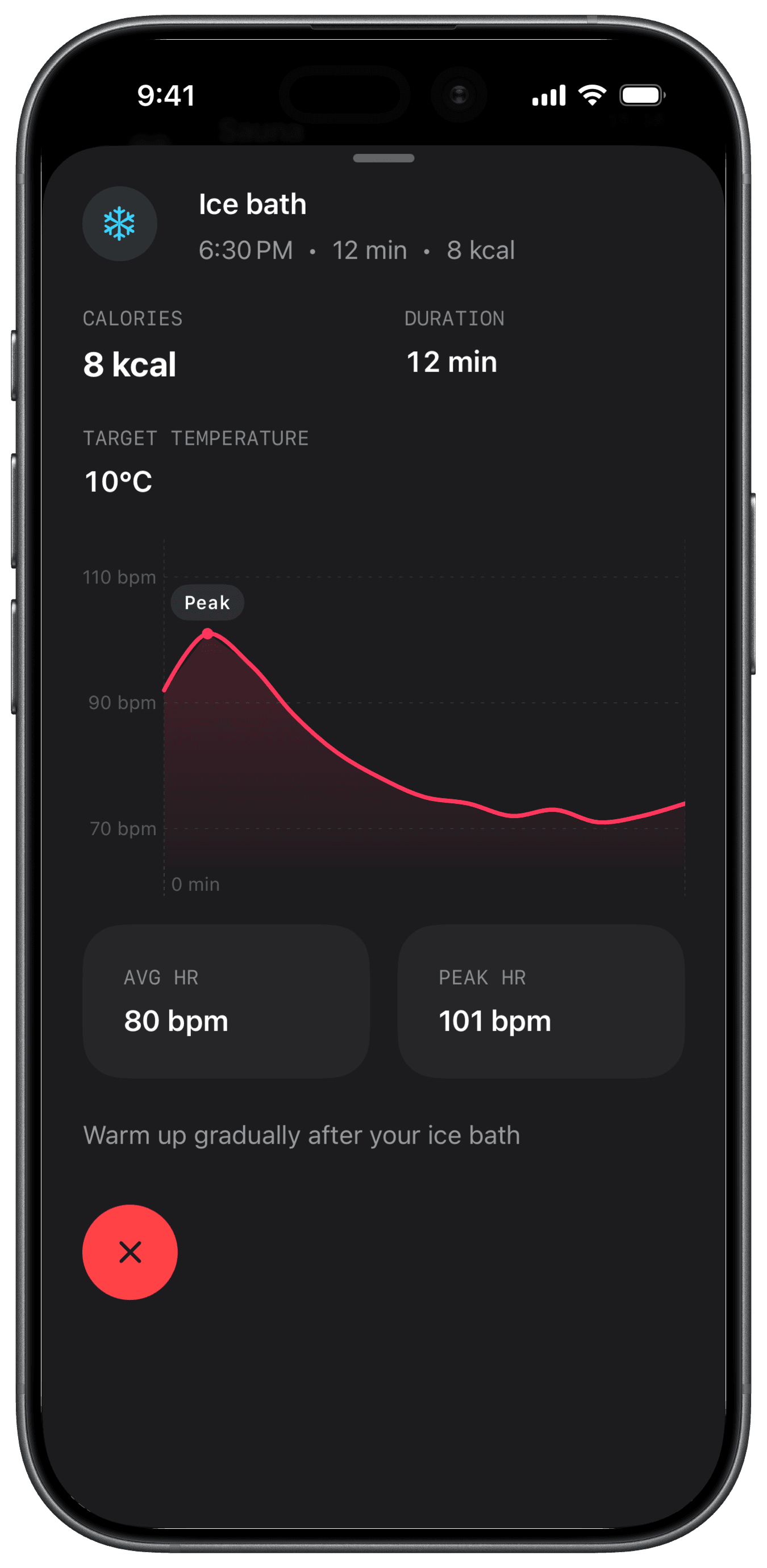
This phone capture shows a separate example from the five-second Watch summary above. Use the details from your own entry when checking a saved session. A session can be saved without heart-rate data, so missing heart-rate metrics do not by themselves mean the save failed.
05Understand the calorie estimate
Ice bath calories use a conservative allowance based on active session time. The temperature you enter and your heart rate do not increase that estimate. Short sessions can therefore display zero calories after rounding.
The estimate does not measure your individual calorie burn or establish a metabolic benefit. Use the session record to review the time and temperature you logged, and use Troubleshooting if the entry does not reach iPhone.