Body measurements give your weight record more context. Fuel lets you save body-fat percentage, lean mass, waist, and other measurements, then keeps private progress photos in a separate gallery for comparisons you choose to make.
Start in You > Weight. Below the weight chart and logging controls, choose Add body measurements or Progress photos.
01Add the measurements you have
Add body measurements opens a sheet with Composition and Circumference fields. Fill only the measurements you have, add an optional Source note, then tap Save. Empty fields are left unrecorded.
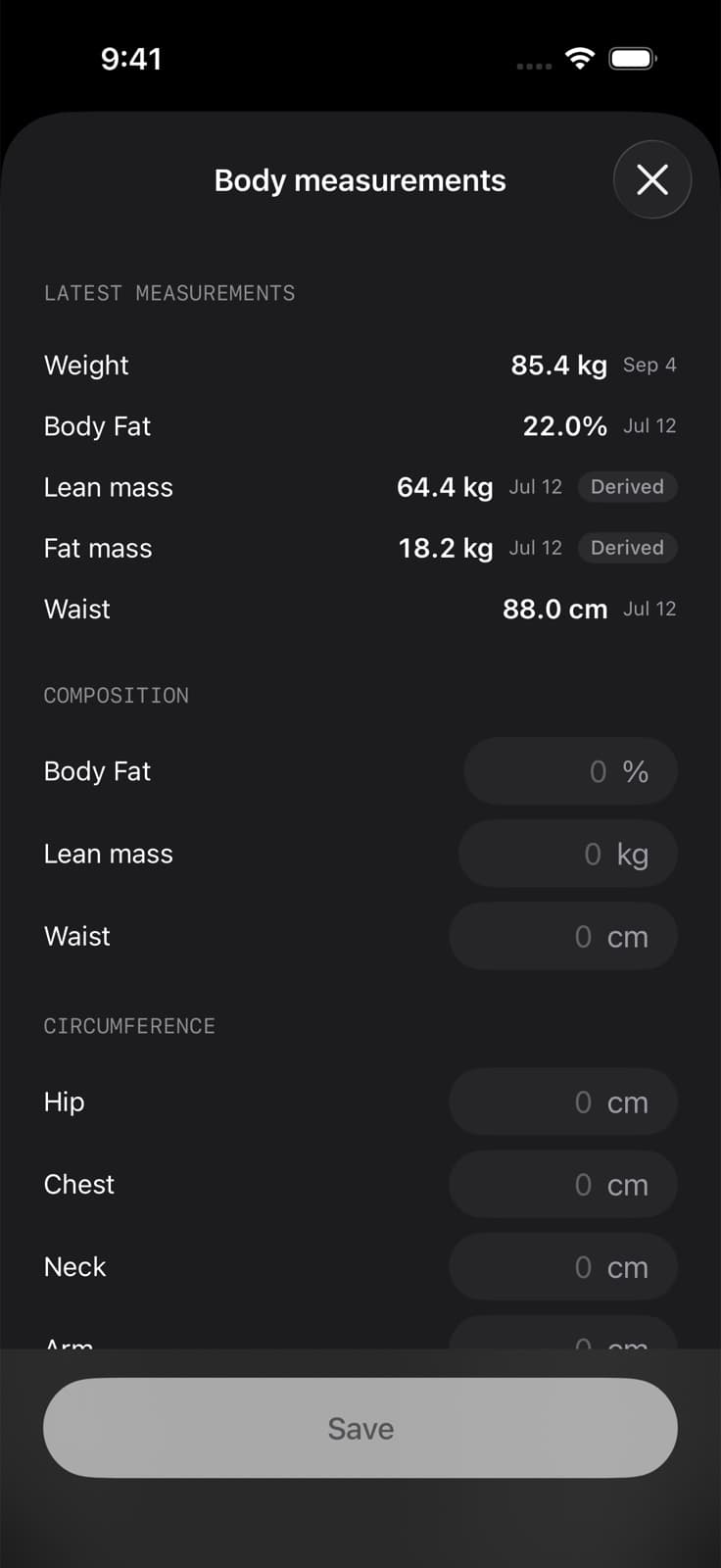
Enter each measurement in the unit shown beside its field, and leave any measurement you do not have blank.
| Section | Available fields |
|---|---|
| Composition | Body Fat %, Lean mass, Waist |
| Circumference | Hip, Chest, Neck, Arm, Thigh, Calf |
The fields use your selected units: kilograms or pounds for mass, and centimetres or inches for circumference. Body-fat percentage stays a percentage. Log weight itself through Log Weight on the Weight screen.
A source note helps distinguish measurements from different methods or devices later. Record the value you measured rather than filling an empty field with an estimate just to complete the form.
02Understand Apple Health sync
Fuel can read weight, body-fat percentage, lean body mass, and waist measurements from Apple Health when permitted. Manually entered body-fat percentage, lean mass, and waist can also be written to Apple Health when access allows it.
Hip, chest, neck, arm, thigh, and calf measurements remain in Fuel's own records. If one of these does not appear in Apple Health, that is expected. Use Apple Health Permissions when a supported measurement should be syncing but is absent.
03Read Body Change Evidence in Reports
Open You > Trends > Reports to review the measurement evidence attached to your report period. Body Change Evidence can show body weight, available composition measurements, waist change, dates, sample counts, and sources.
The evidence label tells you what supports the result. Measured body-composition evidence comes from recorded measurements. Derived from body fat % and weight identifies values calculated from same-day weight and body-fat percentage. Observed body-weight change describes a weight-only result.
Weight alone does not establish how much fat or lean mass changed. A report with little or older measurement data can therefore show a simpler result or a coverage limitation. Reports explains those labels and how they appear in the PDF.
04Turn on progress photos
Open Progress photos from Weight and read the privacy information. Tap Turn On Progress Photos if you want to use the gallery.
Tap Add Photo to select an existing image from your photo library. On New Photo, choose Front, Side, or Back, set the date, and tap Save Photo. The date can be today or an earlier day.
The gallery groups images by month. Use All, Front, Side, or Back to filter it. Keeping the pose label consistent makes it easier to choose comparable images later.
05Compare and share photos
Compare becomes available when at least two saved photos share a pose. Choose the Before and After images for that pose, then use Share Image if you want to export the comparison.
Photos stay separate from nutrition analysis. Fuel does not estimate body fat from them, score your appearance, or add the images to Reports, Health Grade, or coaching. A comparison is for your own visual review.
06Know what stays on this device
Progress-photo files are saved locally and excluded from iCloud backup. They will not return when you restore your Fuel profile on another phone. Fuel's saved body measurements can be included in iCloud Backup. The photo files are separate.
To remove a saved image, open it, tap Delete Photo, and confirm. This removes Fuel's stored copy from the device. Sharing a comparison is always an explicit action through Share Image.
Before changing phones, decide whether you want to keep an exported comparison. Do not rely on profile restore to recover the private gallery.