Smart Recall is the shortest path when the meal already exists in yesterday's log. Type a phrase like "breakfast from yesterday", "bring over yesterday lunch", or "copy yesterday dinner but no rice" and Fuel rebuilds the meal from your own history, then opens a review so you can confirm before saving.
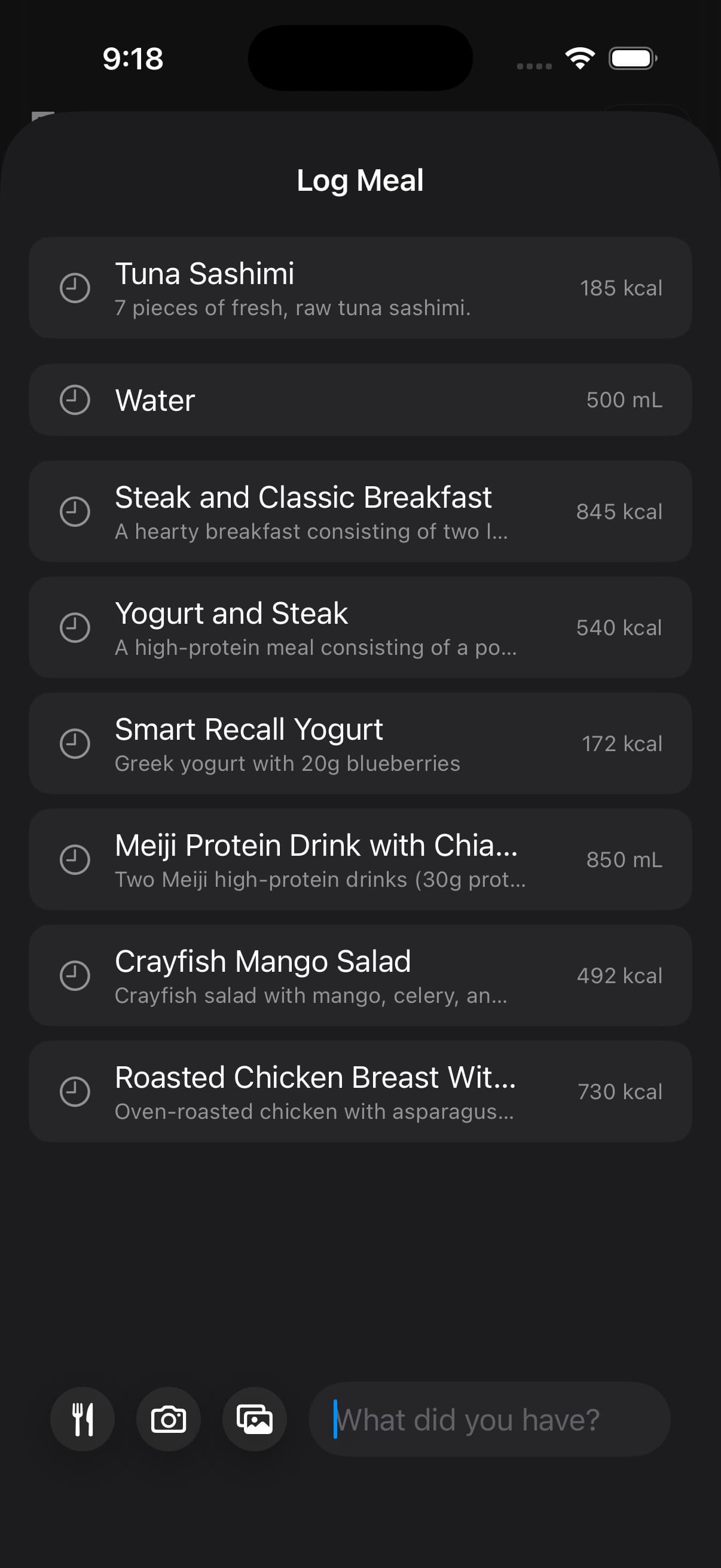
01Recall yesterday's meal with a short phrase
When you type a phrase into the text logger, Fuel checks for two signals at once. The first is a reference to yesterday, written as "yesterday", "yesterday's", "last night's", "last night", or as part of a phrase like "repeat last dinner". The second is a meal slot, meaning breakfast, lunch, dinner or supper, or late snack. If the phrase combines both, Smart Recall takes over the entry instead of treating the text as a fresh AI logging prompt.
Smart Recall has two modes. Exact recall reuses the meal as it was saved. Edited recall reuses the meal and applies a change you described in the same phrase, like removing a side or adding a shake.
02Phrases that trigger Smart Recall
These are examples of the English phrases Smart Recall accepts.
- log same as yesterday's breakfast
- bring over yesterday lunch
- breakfast from yesterday
- yesterday evening meal
- same dinner again
- lunch again
- same supper again
- last night's dinner
- repeat last dinner
- same late snack again
- copy yesterday dinner but no rice
- copy last dinner and half the rice
These phrasings are intentionally treated as normal text logging, not as Smart Recall.
- log blueberries for breakfast
- my usual breakfast
- what I had yesterday
- repeat yesterday snack
The distinction is whether the phrase names a meal slot from yesterday and asks to bring it forward. "My usual breakfast" sounds similar to a recall request, but Smart Recall is not a routine or favorites system. That phrase stays in the normal text logger.
03Meal slots Smart Recall targets
Smart Recall works on the same fixed meal slots Fuel uses elsewhere. It targets breakfast, lunch, dinner or supper (treated as the same slot), and the late snack or late meal slot. A general "snack" target is not supported by Smart Recall. If you ask to repeat yesterday's snack, Fuel treats the phrase as a normal text log and lets you enter the food explicitly.
When the same slot occurred more than once yesterday, Smart Recall picks a qualifying primary episode for that slot. Phrases like "last night's dinner" or "last night supper" steer it toward the most recent one.
04Exact recall
Exact recall is fully local in the app. Fuel reads yesterday's logged meal for the slot you named and prepares a review draft from the saved calories, protein, carbohydrates, fat, available nutrient details, dietary quality, and sugar attribution. It does not call any AI service, send the meal away for interpretation, or require a network connection.
Use exact recall for phrases that only ask to bring yesterday's meal forward.
- breakfast from yesterday
- please log yesterday's breakfast
- use dinner from yesterday
- bring back yesterday breakfast
- same dinner again
- same late snack again
The review screen labels the source so you can confirm where the entry came from. For exact recall, the line reads "Based on yesterday's breakfast", or lunch, dinner, or late snack as applicable.
05Edited recall
Edited recall is for phrases that bring yesterday's meal forward and change something at the same time. Examples that trigger this mode.
- copy yesterday dinner but no rice
- same lunch as yesterday with extra chicken
- repeat yesterday's lunch without soda
- copy last dinner plus a protein shake
- copy last dinner and half the rice
- log yesterdays breakfast but with a steak
Edited recall has a local step and a remote AI step. The local step resolves the phrase and selects the source meal from yesterday. The remote step sends two pieces of information for interpretation, the selected meal bundle and the original phrase you typed. The AI is instructed to treat the selected meal as authoritative, preserve its items unless your phrase clearly changes them, and avoid using your profile data, daily targets, broader day history, coach state, or unrelated meals. The model is also instructed not to invent companion foods such as eggs, toast, bacon, sides, or drinks unless they appear in the source meal or in your request.
Because edited recall calls a remote service, it requires a working internet connection. If you are offline, Fuel shows "Smart Recall edits need a connection" and leaves the entry untouched. Exact recall has no such requirement.
The review source line for edited recall reads "Updated from yesterday's dinner", or the relevant slot name, so you can tell at a glance that the AI adjusted the meal before you save it.
06When yesterday has no matching meal
If you did not log the requested slot yesterday, Smart Recall reports that there is no matching meal. The common reasons are an empty day, a meal logged under a different slot than the one in the phrase, or a typo in the slot name. Switching to a regular text or photo log is the fastest way forward in that case.
07Languages that support Smart Recall
Smart Recall recognizes supported phrases in English, Spanish, French, German, Dutch, Swedish, Russian, Ukrainian, Korean, Japanese, and Thai. Localized phrases use their own meal slot names, yesterday references, and reuse wording, so you do not have to phrase every Smart Recall request in English.
08Smart Recall stays on-device
Exact recall stays on your device because it reads only meals you have already saved. Edited recall sends the selected source meal and your phrase for interpretation so the adjusted version can be prepared. See Privacy and Data for how Fuel handles health data and the choices you have over what gets sent.
For the wider logging picture, see Food Logging and AI Food Logging. For shortcuts that open the logging screens directly, see Quick Actions and Shortcuts.