Breakfast is a meal you have saved. Lunch is something you logged recently. Dinner is new. Fuel on Apple Watch gives each a quick route into your food log: favorites, recents, and a spoken description.
In my own week, favorites and recents cover roughly 90% of what I eat. Voice handles the meals outside that rotation. The useful habit is choosing the route that fits the food in front of you.
01Log your usual breakfast from favorites
Set up breakfast once on iPhone. Open a checked food or meal entry from Today and tap Add to favorites. Choose the version with the ingredients and portion you usually eat.
When breakfast comes around, open Fuel on Watch and tap the fork-and-knife button at the top of Today. Quick Log puts your saved foods within reach. Tap the breakfast favorite and Fuel immediately logs its stored portion.
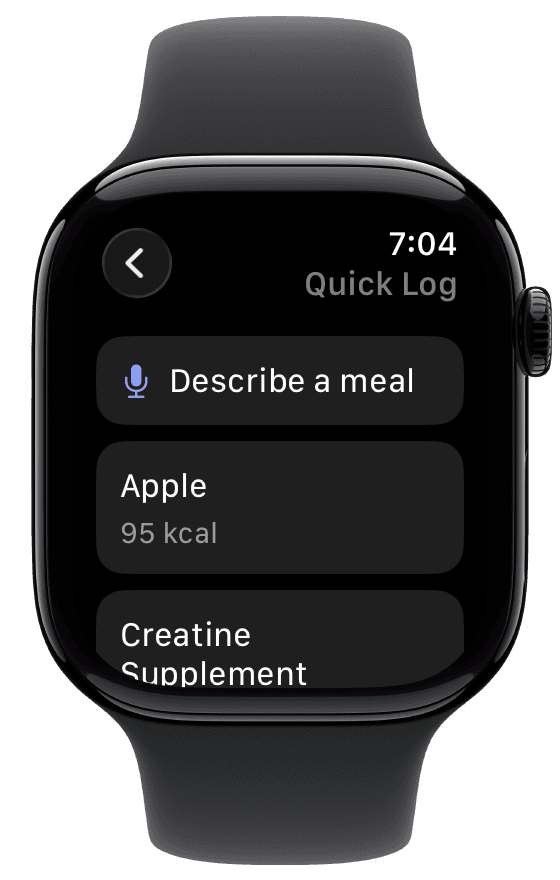
If today's breakfast has a larger serving, different milk, or an extra egg, choose Describe a meal and describe that version. Keep the favorite for mornings when the saved meal matches. Food Logging covers setting up and using the shortcuts.
02Pick a recent lunch without searching again
Yesterday's lunch can be today's shortcut even if you never made it a favorite. Open Quick Log, find the meal under Recents, and tap it when you are eating the same food and amount again.
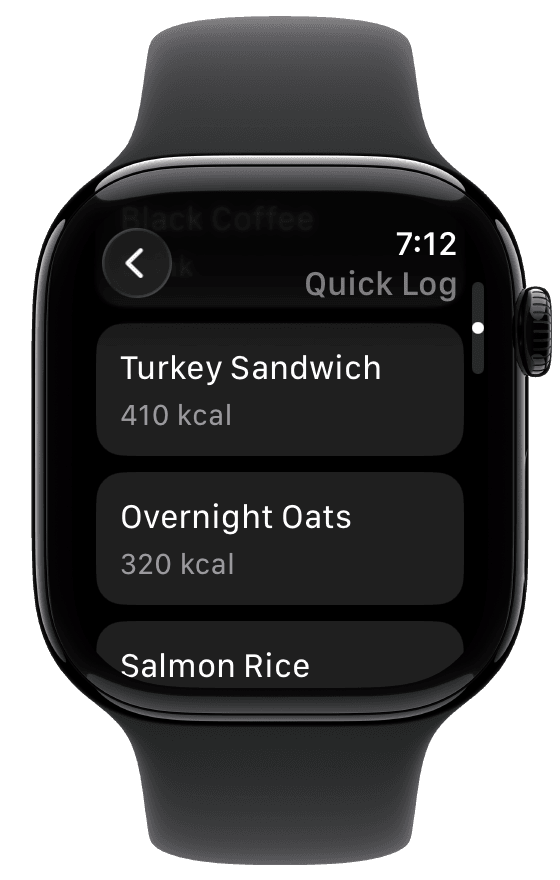
If that lunch becomes a regular order, save a checked version to favorites on iPhone. Your frequent meals then have a deliberate shortcut, while recents remain useful for something you have only just started eating.
Use Recent on Watch Today to check the day's entries. Use Recents inside Quick Log to add a meal again. That distinction helps you check whether lunch is already logged before tapping a shortcut twice.
03Describe dinner during a pause in cooking
A new dinner is easiest to describe while the ingredients and your portion are still in front of you. Open Quick Log, tap Describe a meal, and dictate the foods, quantities, preparation, and any oil or sauce.
For example: "One bowl of chicken and chickpea stew, about a quarter of a pot cooked with two tablespoons of olive oil, and half a cup of cooked white rice."
The share matters. The oil in that example belongs to the whole pot, and the log is for one quarter of it. Include ingredient amounts you know so Fuel has less to estimate. For a shared dish, describe what went onto your plate.
The Watch sends your description to iPhone for analysis. Analyzing on iPhone means the request is still pending, even if its words already appear in the day's entries. Once it finishes, check the completed entry on iPhone for the portion and ingredients. Photos and detailed corrections also belong on iPhone; AI Food Logging explains that workflow.
If dinner becomes a repeat meal, save the checked entry to favorites. The next time you eat the same serving, it joins breakfast and lunch as a wrist shortcut.
04Have one meal ready for tomorrow
Start with the meal you repeat most often. Save one checked entry as a favorite and use it the next time you eat that meal. Add other favorites as they recur, and keep Describe a meal for new food or changed portions.
If you are getting started, download Fuel on iPhone and follow the Watch setup steps. Watch Companion also covers empty saved lists, sync, and log recovery. Get that first repeat meal ready today so tomorrow's breakfast needs only the shortcut.